Caption Styles
Caption Styles
Subtitles are one of the biggest parts of good short-form content.
If your captions look clean, readable, and well-timed, people are more likely to keep watching. That is why EzClap includes a built-in caption styling system that lets you create a consistent subtitle look across every clip you process.
Caption Styles are saved profiles: typography, colors, positioning, line behavior, and animation. Once you create a style and set it as your default, EzClap applies that style to future clips automatically. The goal is simple: set your subtitle style once, then let the workflow stay consistent.
Creating a style
- Open the Caption Styles page. Your existing styles are listed under my styles.
- Create a new style or select one to edit. Give it a clear style name and click save changes when done.
- To start fast, pick a preset: clean social default, hormozi bold, documentary clean, accessibility high contrast, karaoke classic, or cinematic minimal — then tweak from there.
Presets are a quick start, but I highly recommend customizing your own. Make it unique for your brand so you stand out — your font and color choices have a huge impact on how modern, readable, or energetic your videos feel.
Every change updates the live preview panel. Type your own preview text and choose a preview background from your clip thumbnails to judge readability against real gameplay.
Typography and colors
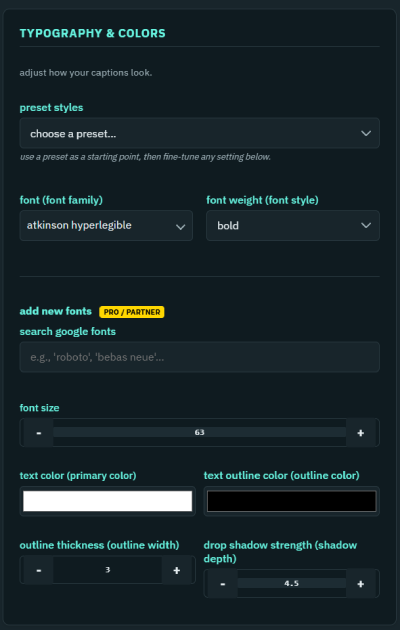
- Font and font weight — choose from the curated font list; Pro / Partner accounts can search and add any Google Font (including favorites like Roboto and Montserrat).
- Font size — the base size of caption text.
- Text color, text outline color, and outline thickness — the outline is especially important because it keeps captions readable against gameplay, overlays, and busy backgrounds.
- Drop shadow strength and drop shadow blur — depth behind the text.
- Voice 2 color — the color used for blocks you mark as a second speaker in the caption editor.
Layout and positioning
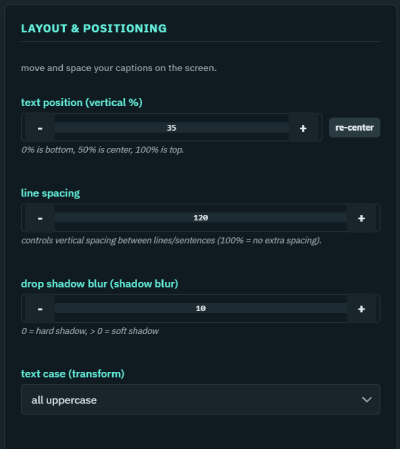
- Text position (vertical %) — where captions sit in the 9:16 frame, with a re-center button to reset.
- Line spacing — the gap between caption lines.
- Max words per line (default 3) and max caption lines — control how much text shows at once. Fewer words per line makes captions feel larger, faster, more punchy, and easier to read on mobile.
- Break long words after (# letters) — the long-word threshold (default 9). If EzClap detects a very long word, like a long gamer tag or a stretched-out reaction word, it breaks it so it does not crush the rest of the subtitle layout.
- Evenly distribute words — balances lines (4 words become 2+2 instead of 3+1).
- Text case — normal, all uppercase, all lowercase, sentence case, or title case. Useful if you want a more aggressive all-caps style, or something cleaner and more natural.
- Remove punctuation — strips commas and periods for a cleaner social look.
Note: lines that are too wide for the video automatically shrink to fit, so a large font combined with a high word count can render smaller than the set size.
Animation and effects
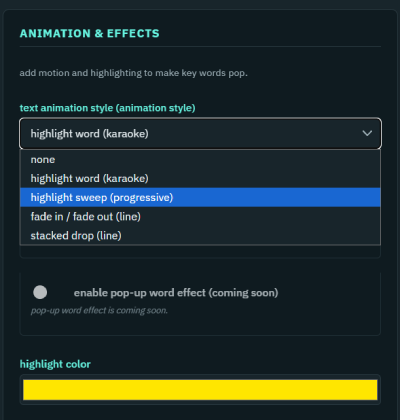
These settings control how subtitles appear, move, and react on screen. Choose a text animation style: none, highlight word (karaoke), highlight sweep (progressive), build-up (word reveal with fade, slide, pop, or typewriter effects), fade in/out, or stacked drop. Karaoke-type animations expose a highlight color, highlight glow strength, and pop-up intensity.
Feel free to customize these as you see fit — rendering animated words is a high-resource feature, so more effects will keep being added as EzClap grows.
Advanced timing and speech detection
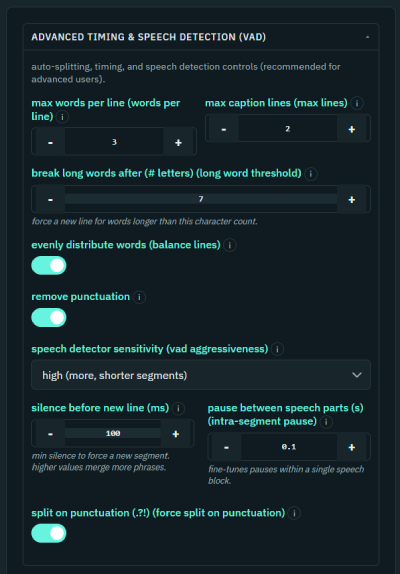
This is the most important part of captions: the more you fine-tune this, the less you will have to modify captions afterward.
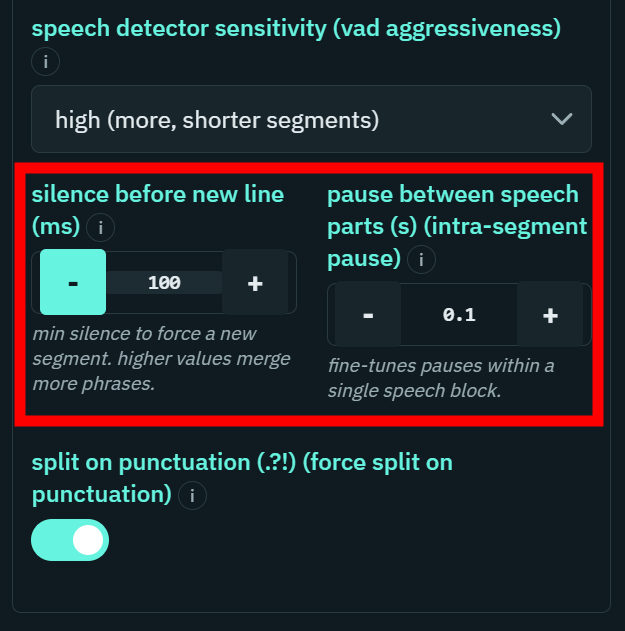
- Minimum silence before a new caption line — helps control how EzClap groups spoken words together. If someone speaks very quickly, lower the silence threshold so captions stay connected properly. If speech is slower and more spaced out, leave more room between words. In simple terms, this setting shapes the rhythm of your subtitles.
- Intra-segment pause tuning — fine-grained control over pauses inside a caption segment.
- Force a split after sentence punctuation — start a fresh caption line after each sentence.
Managing and assigning styles
Use set as default, duplicate, and delete from the editor header. On the assignments tab, attach a style to specific clip templates or search and assign Twitch games. When a clip is captioned, EzClap resolves the style in this order:
- Direct game assignment
- Clip template assignment
- Default style
That means your Valorant clips and your Just Chatting clips can each have their own look without any manual step per clip.
Best way to set up your caption style
A good workflow is:
- create your caption style
- save it as your default
- process a test clip
- review the subtitle look
- adjust spacing, colors, and animation until it feels right
Once it looks the way you want, EzClap applies that same subtitle style to every future clip automatically.
Why caption styling matters
For Twitch streamers posting to TikTok and YouTube Shorts, subtitles are not just decoration. They help with viewer retention, readability on mobile, silent viewing, brand consistency, and overall video polish. A good subtitle style can make the difference between a clip feeling random and a clip feeling intentional.
Once your caption style is set, the next step is reviewing generated captions, fixing small transcription mistakes, and deciding which clips move into Spotlight — all inside the clip editor.