Templates Management
Templates Management
Templates are saved vertical layouts — camera crop, gameplay framing, floating overlay styling, and branding — created in the Clip Wizard. As soon as you save a layout in the wizard, it becomes a template and appears on the Templates page.
This page is your library of saved layouts. From here you can rename templates, delete old ones, pick a default, and manage game assignments. This is where your workflow becomes powerful, because you are not limited to one single layout.
How templates are used
Every clip that enters EzClap is rendered through a template:
- Auto-synced clips use the template assigned to the game you were streaming, falling back to your default template.
- Super Editor batches run through your template pipeline.
- In the caption editor you can re-render an existing clip with a different template at any time.
You can store up to 10 templates per account.
The templates page
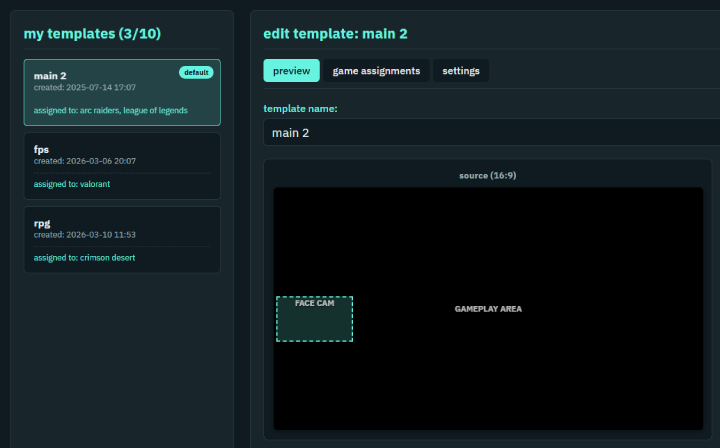
The page header shows my templates with your count against the limit. Select any template to open it in the editor view, which previews the layout mapping from the source (16:9) stream frame to the final output (9:16) vertical frame.
From template actions you can:
- Rename Template — give it a clearer name (e.g. "valorant duo cam").
- Set as default template — this is the layout used when no game-specific assignment matches.
- Duplicate template — copy an existing layout as a starting point for a variant. Duplicating counts toward your 10-template limit.
- Delete template — remove it permanently (you'll confirm first).
To change a template's actual layout — camera boxes, overlay styling, branding — open it in the Clip Wizard, adjust, and use save as template with the overwrite option pointed at the existing template.
Game-specific templates
This is one of the most useful features in EzClap.
Many streamers do not keep the same facecam and overlay position across every game:
- in Valorant, your facecam might be in the top left
- in Just Chatting, your layout might be completely different
- in League of Legends, your HUD may need a different crop entirely
Instead of manually fixing your layout every time you switch games, EzClap lets you assign different templates to different games.
How game assignments work
- Create a layout for one game in the Clip Wizard and save it.
- Create another layout for a different game and save that too.
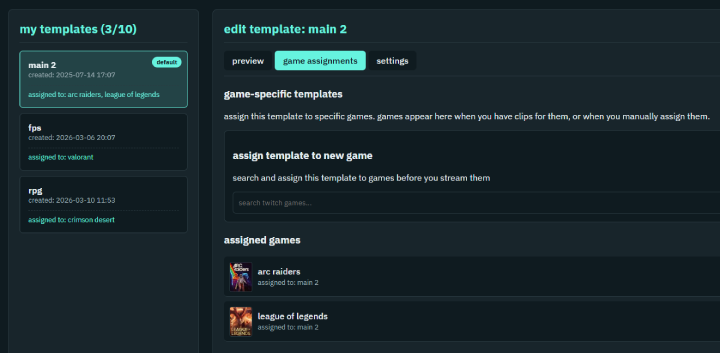
- On the Templates page, under game-specific templates, search for the game under assign template to new game.
- Pick the template that should handle it. The assignment appears under assigned games, where you can remove it later.
When a clip comes in, EzClap checks the clip's game first: if the game has an assigned template, that layout is used; otherwise your default template applies. So if a clip is fetched while you are streaming Valorant, EzClap uses the Valorant layout — and when you switch to Just Chatting, it switches templates automatically.
Don't worry: any game that is not assigned to a template simply uses your default. If you only have one stream overlay and facecam position, you never have to assign anything.
Caption styles have their own parallel assignment system (game → template → default), so a template can also carry its own caption look.
Why this matters
This saves a huge amount of manual work. You do not need to constantly re-crop clips, move boxes around, or fix layouts every time you switch categories. Once your templates are configured, EzClap already knows how each game should look:
- cleaner vertical clips
- better framing
- more consistent branding
- less manual editing
Do the setup once, then let the automation handle the repetitive part.
Suggested setup
- One clean default template that works for most of your content.
- One template per game where your on-stream layout differs (different facecam position, different gameplay crop).
- A duo cam template for collabs, if you're on Pro / Partner.