Super Editor
Super Editor
If you were streaming before you found EzClap, there is a good chance your Twitch channel already has a huge backlog of old clips. Going through them one by one would be painfully slow.
That is exactly why the Super Editor exists.
The Super Editor is built for speed. While the automatic watcher only picks up clips as they are created, the Super Editor connects directly to your Twitch clip history — including your all-time top clips — and lets you batch process many of them at once through your layout template.
This is especially useful if you want to:
- revive older clips from past streams
- build up a large content queue
- process user-created clips manually
- prepare a backlog for scheduled posting
Requirements
- At least one saved layout template — clips are rendered through your template pipeline, so the Super Editor won't start without one.
- Free storage space. If your storage is full, processing is blocked until you delete some clips (see plans and billing for storage limits).
Finding clips
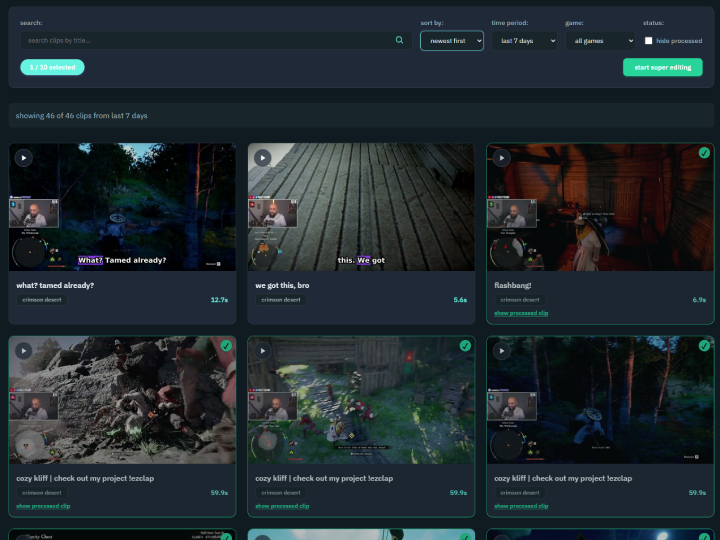
The controls panel gives you the full Twitch clip library for your channel:
- Search clips by title.
- Sort by newest first or most viewed.
- Time period — last 24 hours, 7 days, 30 days, all time, or a custom date range.
- Game — filter to a single category.
- Hide processed — hide clips you have already run through EzClap.
Click any clip to open a preview modal, watch it, and use Add to Queue if it's a keeper. Use Load More Clips to page deeper into your history.
Smart filtering against duplicate work
EzClap automatically flags clips that have already been processed, so you are not wasting time reviewing the same content twice. If a clip is already present in your EzClap dashboard, it is badged in green so you can tell at a glance what has already made it into your workflow.
Running a batch
- Select the clips you want — the counter shows your selection out of a maximum of 10 per batch.
- Click Start Super Editing.
- The page switches to a Super Editing In Progress notice. Each clip is downloaded from Twitch and rendered through your template (facecam layout, gameplay framing, branding) exactly like an auto-synced clip.
- Click View Clips to jump to the Clips dashboard, where you can watch real-time progress as each card finishes.
You can leave the page while a batch runs; the work happens on EzClap's servers. One batch runs at a time per account — wait for the current batch to finish before queuing another.
Super Editor and your clipper filter
If you use a filtering mode in your settings (for example a whitelist), the clips you find in the Super Editor will often be user-created clips that were not automatically processed during your streams.
This gives you a second layer of control:
- Watcher filtering = automatic clip processing during and around streams
- Super Editor = manual clip selection and batch processing
That makes the Super Editor a great place to find hidden gems from your community without letting every random clip hit the automation pipeline automatically.
After processing
Finished clips land on your Clips dashboard like any other clip. From there the normal workflow applies:
- Generate and edit captions.
- Add your best ones to the Spotlight queue for automated publishing.
- Or download them directly for manual posting.
Tips
- Sort by most viewed over all time to instantly surface your proven bangers — these are ideal seed content for DailyDrop.
- Use the game filter plus a game-assigned template so old clips of a specific game render with the right layout.
- Batch in themed groups (one game, one event) so captioning and publishing stays organized.
Pro tip: backlog days
A simple way to use the Super Editor is to set aside a short session once in a while just to clear backlog. Spend 15 minutes reviewing older clips, batch process the best ones, and quickly build up a large queue of content for the rest of the month.
That is one of the easiest ways to prepare more Shorts, more TikToks, and more scheduled content — without needing extra stream time. You already made the content once; the Super Editor just turns it into publishable short-form videos.
Of course, batch editing affects storage — that is why the auto-sweeper exists to keep your storage under control. See settings and auto-sweeper.