StreamSync Auto-Publish
StreamSync Auto-Publish
The final step in the EzClap workflow is getting your clips published. EzClap is built to handle that part for you, so you do not have to manually move video files to your phone, upload them in a browser, or repeat the same posting steps every day.
StreamSync is EzClap's stream-aware publishing engine. Instead of posting on a fixed clock, it publishes clips from your Spotlight queue around your actual streams — before you go live to warm up the algorithm, or after you start to catch the wave. It lives on the auto-publish page alongside its sibling mode, DailyDrop.
Setup overview
- Queue clips in Spotlight — StreamSync only posts what you've curated. Nothing goes out that you didn't approve.
- Connect at least one platform under socials on the auto-publish page: YouTube and/or TikTok, and check Enable Posting for each.
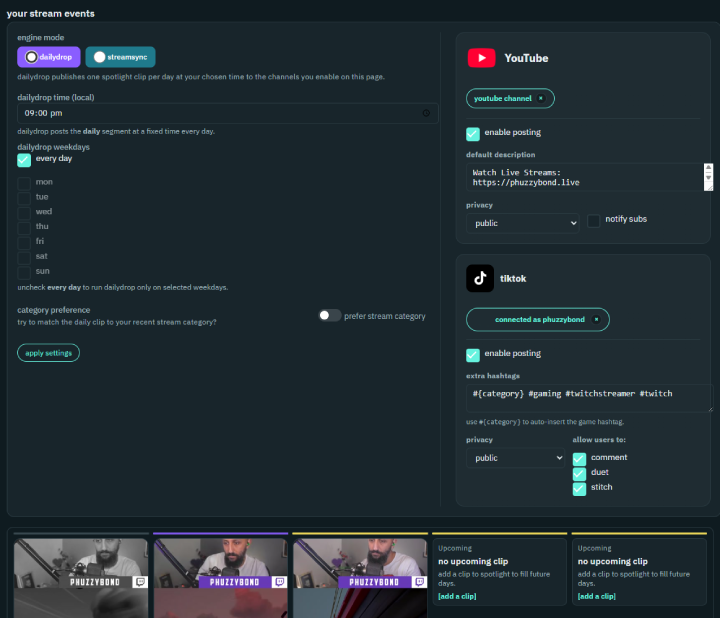
- Set your default publishing text once: a YouTube description template and TikTok hashtags. The title you set in the clip editor becomes the main title of the Short or TikTok, then EzClap appends your saved defaults — so you never write the same descriptions and hashtags twice. The
#{category}token auto-inserts the clip's game (a Valorant clip gets#Valorant) so your tags stay right even when you switch games. - Make sure your stream schedule exists — the schedule page syncs with Twitch through your login and can also import from Google Calendar and integrate with Discord. Your upcoming streams appear as stream events on the auto-publish page.
- In engine mode, select StreamSync, pick a segment, and click apply settings.
Choosing a segment
The segment for all streams setting controls when a clip is published relative to each stream event:
- Pre — 1 hour before the stream starts.
- Boost — 10 minutes after the stream starts.
- Momentum — 1 hour after the stream starts.
- Recap — 4 hours after the stream starts.
- Off — posting disabled.
An extra safety toggle, run boost / momentum / recap only when live, makes the live-gated segments skip their post if you didn't actually go live. Pre fires on schedule regardless, since its whole point is posting before you're live.
Category matching and fallback logic
By default StreamSync tries to publish a Spotlight clip that matches the stream's game category. Fallback Logic decides what happens when nothing matches:
- Do Nothing (Skip) — no post for that stream.
- Post Oldest Spotlight (Any Category) — always post something.
- Post Specific Category... — fall back to a category you pick.
Slot tags in the Spotlight queue warn you ahead of time when a clip's category won't match an upcoming stream.
Monitoring runs
The auto-publish page shows each upcoming stream event with its StreamSync status (scheduled, published, failed, or disabled), and a run now action to fire an event's segment manually. The activity feed logs every run — which clip, which platform, which segment — so you always have a publish history. TikTok posts go through a per-post settings step covering privacy and interaction options; see publishing to TikTok.
StreamSync or DailyDrop?
Both modes are fully automated, but they solve different problems.
Use StreamSync if you want:
- clip publishing tied to your live stream schedule
- posts timed around when you go live
- a workflow that follows your streaming rhythm
Use DailyDrop if you want:
- a simple daily or weekly posting schedule
- steady output across YouTube Shorts and TikTok
- content going out even on off days
You pick one engine mode at a time; both draw from the same Spotlight queue.
A set-and-forget workflow
Staying consistent with posting is usually harder than making the content. Once your accounts are connected, your default text is set, and your engine mode is chosen, the workflow becomes simple:
- clips get processed
- you review and approve them
- you add them to Spotlight
- EzClap publishes them for you
That is the whole point of the conveyor belt. For the full picture of how review, Spotlight, and publishing fit together, see your workflow.